iPhone 4 Downgrade Guide (Any iOS Version)
This guide will instruct you on how to downgrade an iPhone 4 to any version of iOS that is supported by the phone. The one exception to this is that the iPhone 4 CDMA (the version without a SIM slot) cannot be restored to iOS 4. The GSM iPhone 4 can be restored to iOS 4 without issue.
This tutorial does not require that you have SHSH blobs for the version you would like to restore to.
How it Works
This tutorial will utilize an open-source tool called Legacy iOS Kit, which was developed by LukeZGD. This downgrade is made possible by an exploit in iBoot, the "stage 2" bootloader on iDevices. The exploit affects any 32-bit iOS Device that is running on iOS 7.1, 7.1.1, or 7.1.2. As iOS 7.1.2 is the latest signed version of iOS for the iPhone 4, any iPhone 4 can be downgraded using this method.
Note that while this is an untethered downgrade, iOS 7.1.2's iBoot remains on the phone, meaning that you will see the modern boot logo for a couple seconds on power up. The battery flat and recovery mode screens also display the iOS 7-style graphics.
What You Will Need
- An iPhone 4, obviously.
- A 30-pin to USB cable. Aftermarket cables may be hit or miss.
- A computer running Mac OS X 10.11 "El Capitan" or newer, or a computer running a fairly recent version of Linux.
- The latest version of Legacy iOS Kit.
- The IPSW Restore File for the version of iOS that you wish to downgrade to, and the IPSW for the latest version of iOS available for the iPhone 4 (7.1.2). Both files can be downloaded from ipsw.me. Make sure that you download the correct file for your version of the iPhone 4.
Instructions (macOS)
1. Plug your iPhone 4 into your computer.
2. Download Legacy iOS Kit from the releases page linked above, and extract it from the ZIP archive.
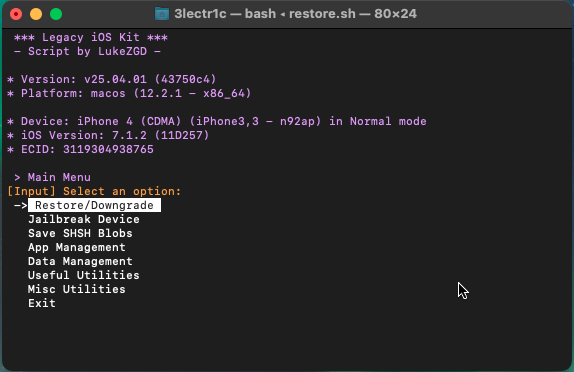
3. Open Terminal, then open the folder where the Legacy iOS Kit was extracted to. Drag and drop the "restore.sh" file into Terminal, then press enter. On first run, Legacy iOS Kit may find an update and instruct you to download it. If so, follow the instructions and then re-run the tool. Legacy iOS Kit should then detect your device and give you a list of options to pick from.
4. Select the first option, "Restore/Downgrade". This should bring you to another menu.
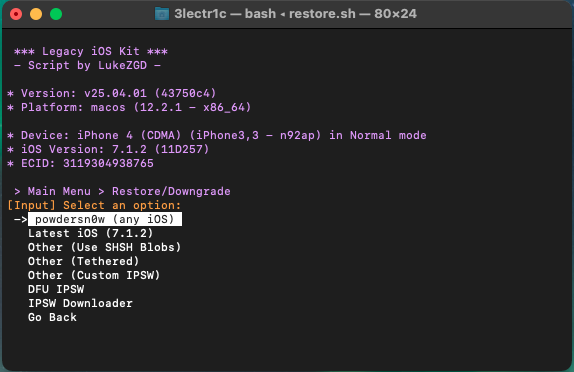
5. Select the first option, "powdersn0w (any iOS)".
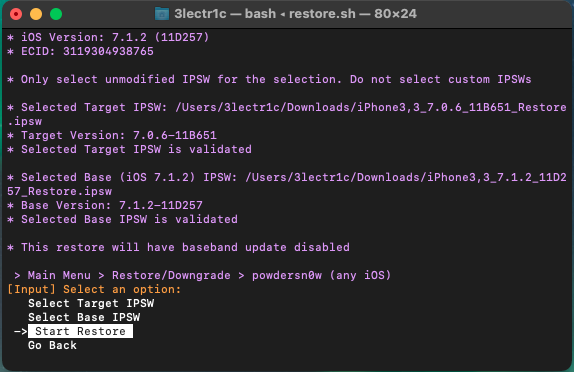
6. Select your target IPSW (the version you want to restore to, in this case, I picked 7.0.6) and your base IPSW (iOS 7.1.2).
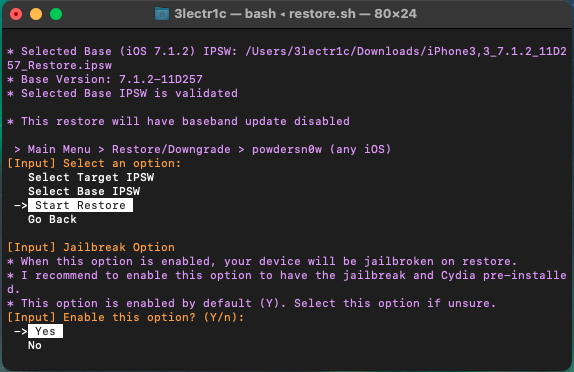
7. Select the option to start the restore.
8. Choose whether or not you would like the device to be jailbroken alongside the restore.
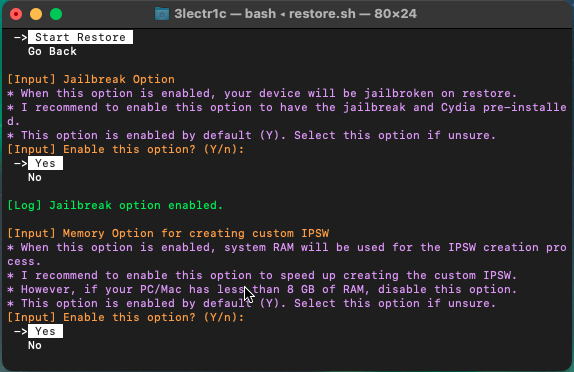
9. Legacy iOS Kit will ask whether or not you want to use your computer's RAM to create the custom IPSW that you are restoring. If you have 8GB of RAM or above, select yes. Otherwise, select no.
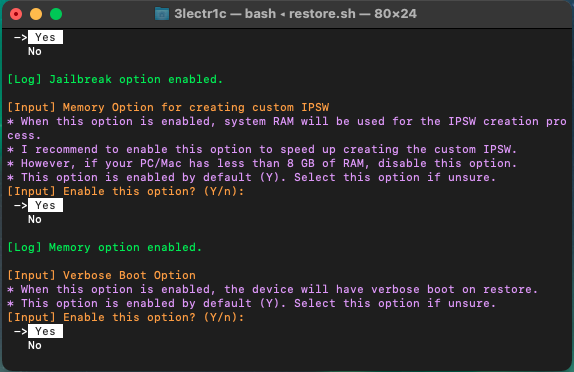
10. Select whether or not you would like to display a verbose boot on restore. Which option you pick here really doesn't matter.
11. Depending on the version of iOS you are restoring, you will be asked if you would like to use a custom boot logo. If you would like to do this, it gives instructions on what logo resolution is required. In this case, it did not give me this option when restoring to iOS 7.0.6.
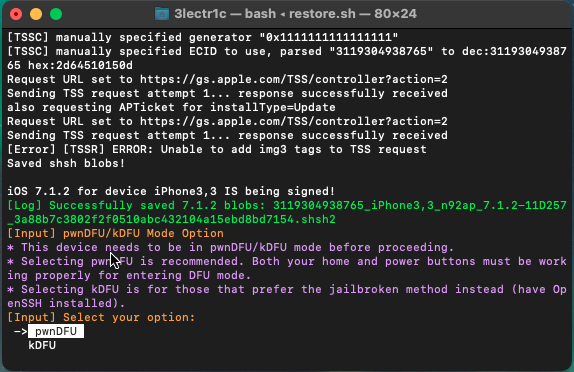
12. Legacy iOS Kit will then create the custom IPSW file. After it finishes, you will then need to place your phone into Pwned DFU mode for the restore. You will be prompted to pick between pwnDFU or kDFU. Unless you know what you are doing, pick pwnDFU. After this, Legacy iOS Kit will instruct you on how to put your iPhone into DFU mode. Once in DFU mode, you will be prompted to pick between using ipwnder or ipwndfu to place your phone into Pwned DFU mode. Try ipwnder first. If this fails, try ipwndfu instead. Once in Pwned DFU mode, the device will begin to be restored to your target version of iOS.